/ home
MENU

.jpeg)
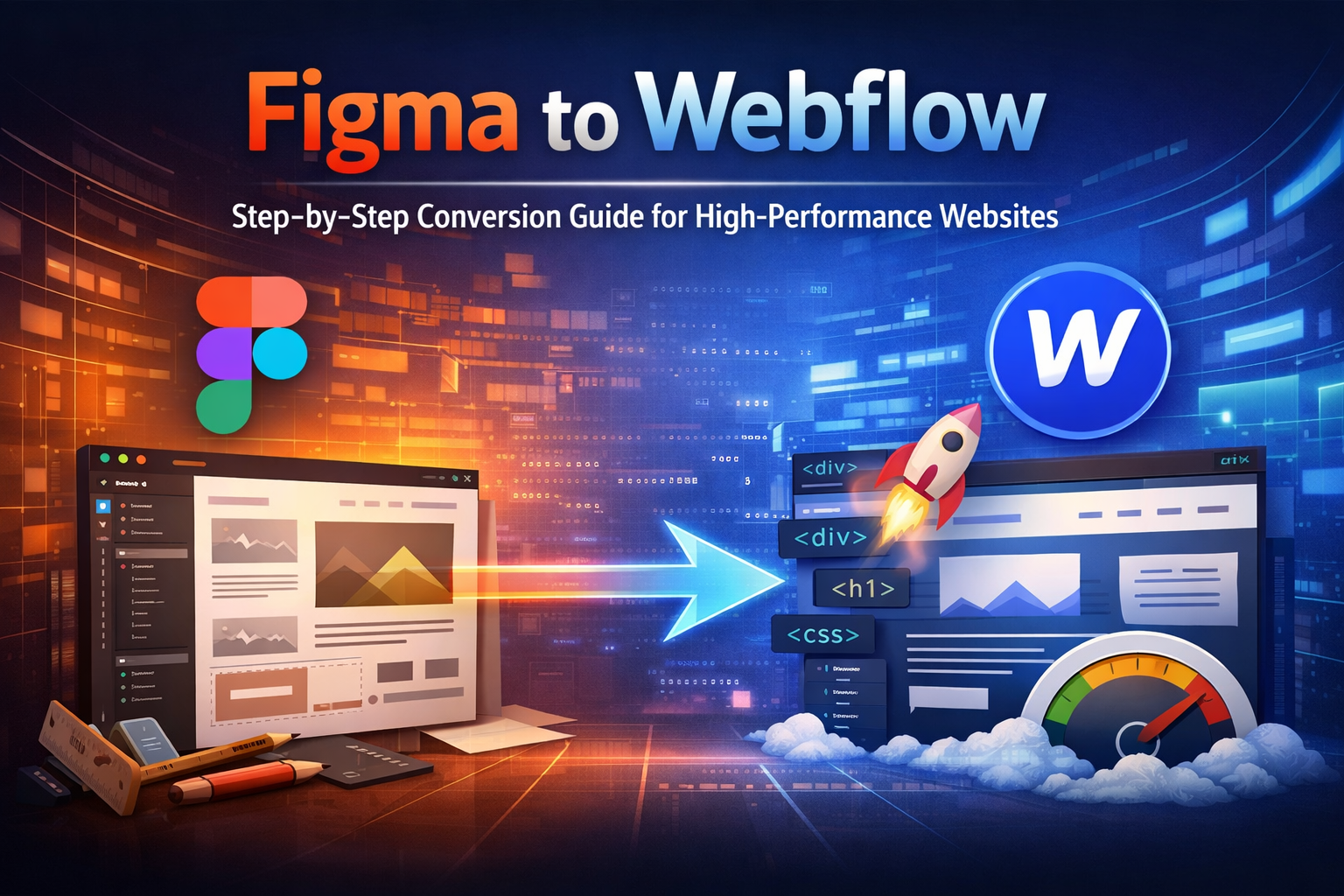
Designing in Figma and developing in Webflow has become one of the most effective workflows for building modern, high-performance websites. This combination bridges the traditional gap between design and development, allowing teams to move from concept to launch faster—without compromising quality, scalability, or SEO.
Figma is widely used by designers because it offers a collaborative, cloud-based environment where UI and UX decisions can be made with clarity. Teams can create wireframes, high-fidelity designs, and interactive prototypes while maintaining consistency through shared styles, components, and design systems. However, Figma itself is not meant to publish websites. It is purely a design tool, which is where Webflow comes in.
Webflow takes those carefully crafted designs and turns them into real, production-ready websites. Unlike basic page builders, Webflow generates clean HTML, CSS, and JavaScript, giving you full control over structure, responsiveness, and performance—without requiring heavy manual coding. When used correctly, this workflow results in websites that are visually accurate, technically sound, and optimized for search engines.
This guide breaks down the Figma to Webflow conversion process in a clear, step-by-step, and point-wise manner, with a strong focus on performance, responsive behavior, clean layout structure, and SEO best practices. Rather than simply explaining how to convert designs, it also explains why each step is important, helping you make better design and development decisions throughout the process.
What Is Figma to Webflow Conversion?
Figma to Webflow conversion is the structured process of rebuilding a Figma UI/UX design inside Webflow to create a fully functional, responsive website. It is important to understand that this process is not a direct export or one-click conversion. Instead, it involves thoughtfully recreating the design using Webflow’s layout system and best practices.
A few key points define this process clearly:
When done correctly, Figma to Webflow conversion ensures that the final website is pixel-accurate while also being technically optimized. A proper conversion results in a site that is fully responsive across devices, easy for teams to manage and update, and structured in a way that search engines can easily understand and index.
Why Choose Webflow for Figma Designs?
Webflow is an ideal platform for implementing Figma designs because it combines visual freedom with technical precision. Designers can maintain creative control, while developers and marketers benefit from clean structure and scalability.
Key advantages include:
Because of these strengths, Webflow is especially well suited for startups, SaaS companies, agencies, and marketing-driven websites that require speed, flexibility, and long-term scalability.
Pre-Conversion Preparation in Figma (Very Important)
Successful Figma to Webflow conversion starts long before you open Webflow. Proper preparation inside Figma plays a critical role in reducing development time, avoiding layout errors, improving responsiveness, and ensuring clean, SEO-friendly output. A poorly organized Figma file almost always leads to messy Webflow builds, excessive classes, broken responsiveness, and performance issues.
Treat your Figma file as a blueprint for development, not just a visual mockup.
Step 1: Organize a Clear Design System in Figma
A strong design system is the foundation of an efficient Figma to Webflow workflow. Without it, consistency breaks down quickly during development.
Your Figma file should include:
Why this matters:
Webflow relies on reusable CSS classes. When your Figma design uses consistent styles, those styles can be mapped directly to Webflow classes. This results in cleaner code, easier updates, and better long-term scalability.
Step 2: Use Auto Layout Properly
Auto Layout in Figma closely reflects how real CSS works in Webflow, especially Flexbox.
Best practices include:
Why this matters:
Designs created with auto layout convert smoothly into Webflow’s flex and grid systems. This significantly reduces layout breaks and saves time during responsive adjustments.
Step 3: Plan Responsiveness in Advance
Responsiveness should be planned during design—not fixed later.
Design with these breakpoints in mind:
Avoid layouts that only look good on large screens. Text blocks should wrap naturally, buttons should remain clickable on small screens, and spacing should scale proportionally.
Why this matters:
Webflow applies styles downward across breakpoints. Responsive-aware designs require fewer overrides and result in cleaner, more predictable layouts.
Step 4: Optimize Assets Before Exporting
Unoptimized assets are one of the biggest reasons websites load slowly.
Before exporting assets from Figma:
Why this matters:
Optimized assets improve page speed, Core Web Vitals, user experience, and SEO rankings.
Step-by-Step Figma to Webflow Conversion Process
Step 1: Analyze the Figma Design Structure
Before starting development, thoroughly analyze the design.
Checklist:
Why this matters:
This step prevents over-complicated Webflow structures and unnecessary nesting.
Step 2: Create a New Webflow Project & Global Styles
The initial Webflow setup defines how clean your site will be.
Key actions:
Why this matters:
Global styles ensure visual consistency and make large websites easier to maintain.
Step 3: Build the Page Structure First (Layout Before Design)
Focus on structure before styling.
Build layouts using:
Avoid absolute positioning unless it’s truly required.
Why this matters:
A strong structural foundation improves responsiveness, performance, and scalability.
Step 4: Recreate Components & Reusable Elements
Convert common UI elements into reusable components:
Benefits:
Step 5: Apply Styles & Visual Details
Once structure is complete:
Why this matters:
This prevents class duplication and keeps CSS clean and manageable.
Step 6: Make the Website Fully Responsive
Adjust layouts at each breakpoint.
For tablet and mobile:
Always test responsiveness on real devices if possible.
Step 7: Add Interactions & Animations Carefully
Animations should enhance usability—not distract.
Best practices:
Performance should always come first.
Step 8: Integrate Webflow CMS (If Required)
For dynamic content:
CMS integration allows non-designers to manage content easily.
Step 9: SEO Optimization Setup
Key SEO tasks:
Webflow provides excellent SEO controls when used correctly.
Step 10: Performance Optimization
Improve loading speed by:
Performance directly impacts SEO rankings and conversions.
Step 11: Testing & Quality Assurance
Before launch, test:
Fix all issues before publishing.
Step 12: Launch & Post-Launch Checklist
After publishing:
Common Figma to Webflow Mistakes to Avoid
Manual vs Plugin vs Expert Conversion
Manual Conversion
Plugin-Based Conversion
Expert Conversion
Time & Cost Overview
Time Required
Cost Factors
Who Should Use the Figma to Webflow Workflow?
Final Thoughts
Figma to Webflow conversion is a structured process—not a shortcut. When done step by step with performance and SEO in mind, it results in a website that is fast, scalable, and easy to manage.
Partnering with experienced specialists like webflowexpertsindia.webflow.io ensures your design translates into real-world performance and long-term growth.
SEO Meta Information
Meta Title: Figma to Webflow: Step-by-Step Conversion Guide for High-Performance Websites
Meta Description: A detailed, step-by-step guide to converting Figma designs into high-performance Webflow websites. Learn structure, responsiveness, SEO, cost, and best practices.
FAQ Schema Questions
What is Figma to Webflow conversion?
It is the structured process of rebuilding Figma designs into responsive, SEO-friendly Webflow websites.
Is Webflow good for SEO?
Yes, Webflow offers clean code, semantic HTML, and strong on-page SEO controls.
Can Figma designs be converted automatically to Webflow?
Plugins exist, but manual or expert conversion provides better performance and scalability.
How long does Figma to Webflow conversion take?
From a few days for landing pages to several weeks for complex CMS websites.
Who should hire a Figma to Webflow expert?
Businesses that want high-performance, scalable, and conversion-focused websites.
Explore Real Strategies, Trends, and Tips to Help Your Brand Grow.
.png)